

Transaction List
The transactions page displays all synced transactions from your assets in a filterable table.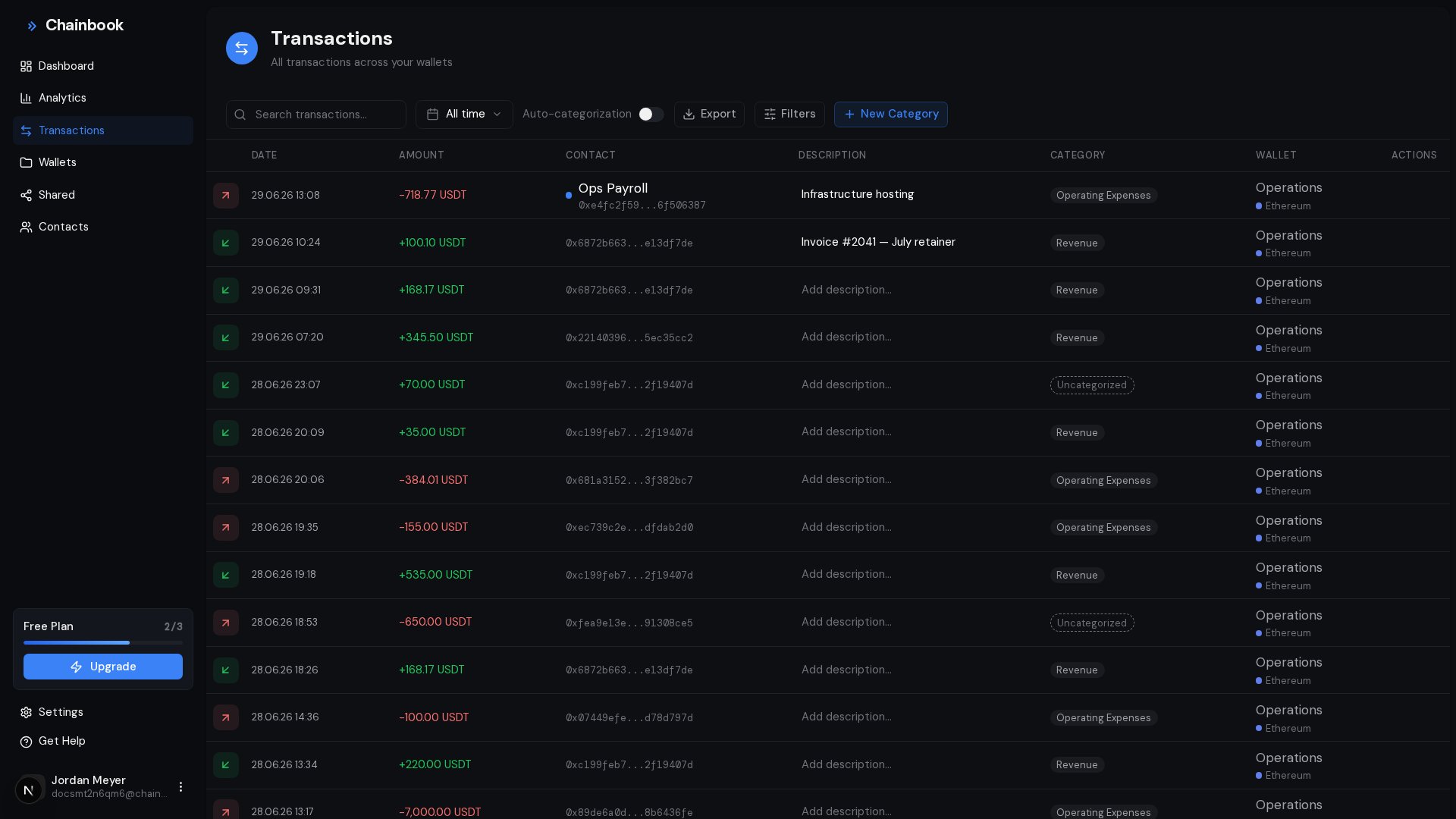
Transaction Information
Each row shows:
Each row also includes a direct link to the transaction on the blockchain explorer (Tronscan for TRON, Etherscan for Ethereum).
Transaction Details
Click any transaction to open the details panel:- Transaction Hash — unique blockchain identifier, with a copy button and an explorer link
- Block Number — block in which the transaction was confirmed
- Network — TRON or Ethereum
- On-chain fee — the network fee, when available
- Description — custom notes you’ve added
- Category — classification for reporting
- AML Screening — counterparty risk information (see below)
- Swap Details — for swap transactions (see below)
Counterparty Risk (AML)
For incoming and outgoing transactions, the details panel includes an AML Screening section showing the counterparty’s risk level (Low, Medium, High, or Unscreened), the date it was last screened, and any risk flags found (for example, sanction lists, mixing services, or reported scams). You can start a screening directly from the panel when the counterparty is saved as a contact.AML screening is available on Pro and Enterprise plans. Swaps and internal transfers have no external counterparty, so this section doesn’t apply to them.
Swap Details
Swap transactions include a Swap Details card showing the token and amount you sent, the token and amount you received, and the slippage when it can be calculated.Transaction Types
Every transaction is automatically classified as one of four types:Internal Transfers
When you move funds between your own tracked assets, Chainbook detects it and labels both sides as an Internal Transfer — no manual tagging needed.Filtering Transactions
Use the search box and the filter drawer to find specific transactions quickly.Search
Type in the search box in the toolbar to search your transactions by text — for example a description, contact name, or address.Filter Drawer
Click Filters in the toolbar to open the filter drawer. Each filter is multi-select and shows a live count of matching transactions:Type
Incoming, Outgoing, Internal Transfer, or Swap.
Wallet
Show transactions from specific wallets only.
Contact
Show transactions involving specific contacts, or pick Unknown address for counterparties not in your contacts.
Category
Filter by assigned category, or pick Uncategorized to find transactions without one.
Filter by Date Range
1
Open the date picker
Click the date range selector.
2
Choose a preset or custom range
Presets apply immediately when clicked:
- Today
- Last 7 Days
- This Month
- Last Month
- Last 3 Months
Editing Transactions
You can add descriptions and categories to any transaction — either directly in the table row or in the details panel.Adding a Description
1
Click the description field
Click the description cell in the row (or open the transaction’s details panel).
2
Enter your notes
Example descriptions:
- “Monthly subscription payment”
- “Withdrawal to exchange”
- “Client payment - Invoice #1234”
3
Save
Press Enter or click outside the field to save.
On the Free plan, you can add descriptions to up to 20 transactions. When you reach the limit, an alert appears with an upgrade link — Pro and Enterprise plans have no limit.
Assigning a Category
1
Click the category cell
Click the category in the row (or open the transaction’s details panel).
2
Select a category
Choose from your categories in the dropdown.
Create categories with the New Category button on the Transactions toolbar. See Categories.
3
Category is applied
The transaction now shows the assigned category.
Exporting Transactions
Export your transactions as CSV for accounting or further analysis.1
Apply filters (optional)
Set wallet, category, contact, or date filters to export only specific transactions.
2
Click Export
Click the Export button in the toolbar.
3
Download CSV
Your browser downloads Chainbook-transactions.csv with the filtered transactions.
The export honors your wallet, category, contact, and date range filters. The search box and the Type filter are not applied to exports.
CSV Format
The exported CSV includes:
All fields are quoted and the file is UTF-8 encoded, so it opens cleanly in Excel and Google Sheets. Exports are capped at 50,000 rows — apply filters if you need to export more than that in slices.
See the Exporting Data Guide for detailed export workflows.
Pagination
Transactions are paginated for performance:- 50 transactions per page
- Navigate using Previous and Next buttons
- Page indicator shows current position
Chainbook imports confirmed on-chain transactions only. Pending transactions from your wallet are not shown until confirmed.
Frequently Asked Questions
Why are some transactions missing?
Why are some transactions missing?
Possible reasons:
- The wallet is still syncing (check its status on the Wallets page)
- The transaction hasn’t been confirmed on-chain yet
- The asset address was recently added
Can I delete transactions?
Can I delete transactions?
No, transactions cannot be deleted individually. They represent actual blockchain activity. However, you can remove an asset to remove all its transactions.
How do I find a specific transaction?
How do I find a specific transaction?
Use the search box to look up a description, contact, or address, or narrow down with filters:
- Filter by the date range when the transaction occurred
- Filter by the wallet involved
- Filter by contact if you know the other party
Why do amounts look different from my wallet?
Why do amounts look different from my wallet?
Chainbook displays raw blockchain amounts with proper decimal handling. Slight differences may occur due to:
- Different decimal precision display
- Token decimal configuration
- Rounding in display vs. actual value