

Overview
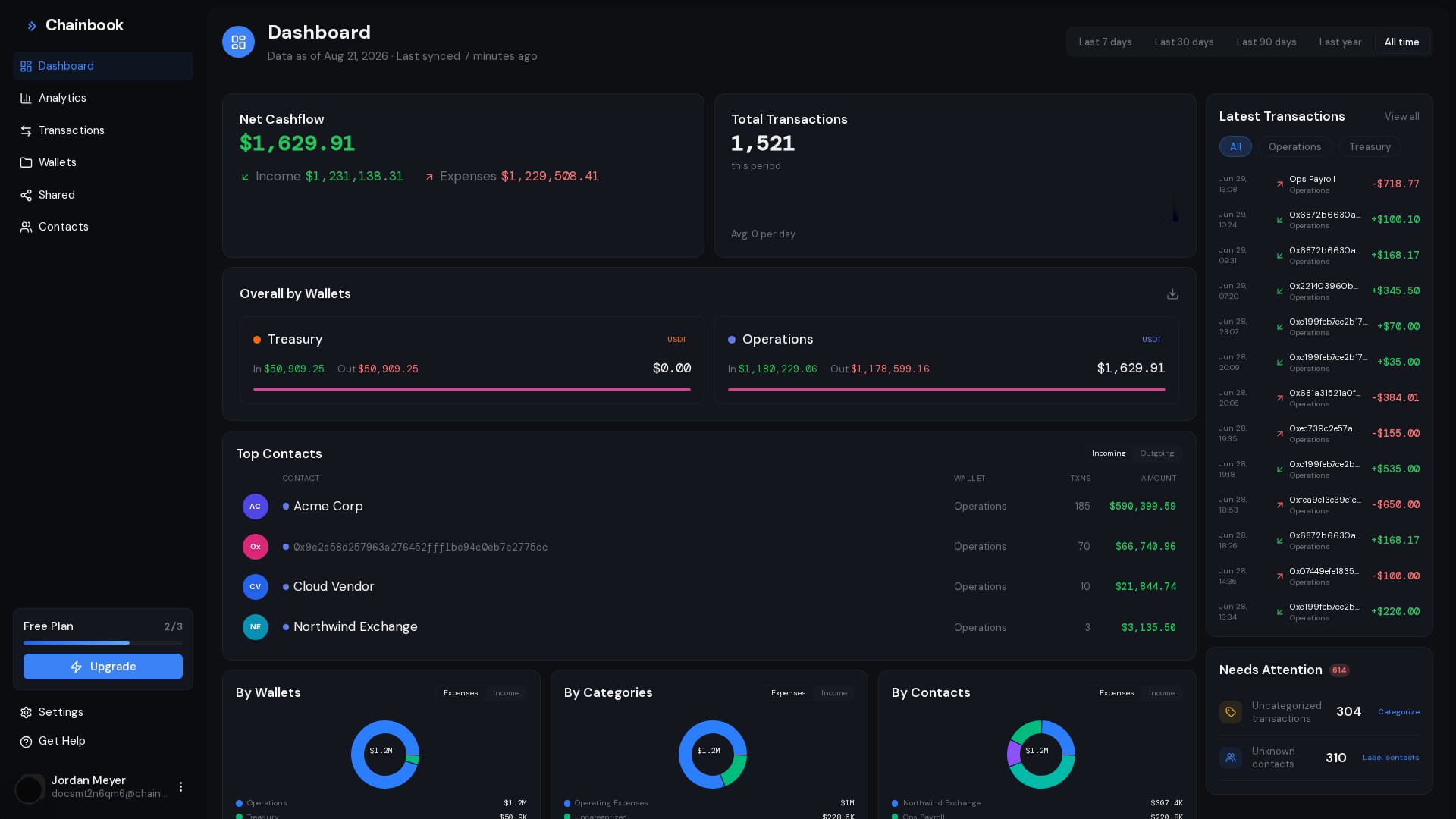
- Net Cashflow - Net figure for the period with income and expenses
- Total Transactions - Transaction count with a daily activity chart
- Overall by Wallets - Per-wallet summary cards with CSV export
- Top Contacts - Your most active counterparties, incoming or outgoing
- Distribution charts - Donut charts by wallets, categories, and contacts
- Latest Transactions - Your most recent activity in a right-side list
- Needs Attention - Items that need cleanup, with quick links
Choosing a Period
A segmented control at the top of the dashboard sets the time period for every widget:- Last 7 days
- Last 30 days (default)
- Last 90 days
- Last year
- All time
The dashboard uses these fixed presets only - there is no custom date range here. For custom
ranges, use the date filter on the Transactions page.
Data Freshness
The dashboard header shows how current your data is, for example “Data as of Aug 21, 2026 · Last synced 5 minutes ago”. If no sync has completed for about 2 hours, the header shows a warning indicator so you know the numbers may be behind the blockchain. Wallets sync automatically every 10 minutes, and the dashboard reflects each completed sync.Net Cashflow
The Net Cashflow card summarizes money movement for the selected period:Net Cashflow represents the flow during the selected period, not your current wallet balance.
Total Transactions
The Total Transactions card shows how many transactions occurred in the period, with:- An embedded mini bar chart of daily transaction counts across the period
- An “Avg. N per day” figure below the chart
Overall by Wallets
Overall by Wallets shows one card per wallet. Each card displays:- Network dots and token badges - Which networks and tokens the wallet’s assets cover
- In / Out / Balance - Income, expenses, and net for the period
- Income split bar - A thin bar visualizing the income-to-expense ratio (hover for the exact percentage)
Exporting the Wallet Summary
1
Set your period
Choose the period you want the summary to cover.
2
Click the download icon
Click the download icon in the Overall by Wallets widget header.
3
Open the CSV
A file named
Chainbook-OverallByWallets.csv downloads with columns: Wallet name, In, Out,
Balance.Top Contacts
Top Contacts lists the counterparties with the highest volume in the period. Use the Incoming / Outgoing toggle to switch direction; the list shows each contact’s name (or address), network, wallet, transaction count, and amount for that direction.- Clicking a named contact opens the Transactions page filtered to that contact
- Clicking an unnamed address copies the address to your clipboard
Distribution Charts
Three donut charts break down your activity for the period:- By Wallets - Distribution across your wallets
- By Categories - Distribution across your transaction categories
- By Contacts - Distribution across counterparties
Latest Transactions
The Latest Transactions panel on the right shows your 20 most recent transactions for the selected period. It has:- Its own row of wallet filter chips (“All” plus one chip per wallet) to narrow the list to a single wallet
- A View all link that opens the full Transactions page
Needs Attention
The Needs Attention card surfaces items that need cleanup, each with a count and a quick link:
When everything is in order, the card simply reports that nothing needs attention.
Dashboard Best Practices
Weekly review checklist:- Check Latest Transactions for unexpected activity
- Review the Net Cashflow card for the week
- Clear the Needs Attention list
- Compare the % change badge against the previous period
- Review the category distribution chart
- Check Top Contacts for new or unusual counterparties
Frequently Asked Questions
Why doesn't Net Cashflow match my wallet balance?
Why doesn't Net Cashflow match my wallet balance?
The dashboard shows flow (income minus expenses) for a period, not your current wallet
balance. Your wallet balance also includes activity before the selected period and tokens not
tracked by Chainbook.
Can I filter the whole dashboard to one wallet?
Can I filter the whole dashboard to one wallet?
There is no dashboard-wide wallet filter. The Latest Transactions panel has its own wallet
chips, and clicking a wallet card in Overall by Wallets opens that wallet’s transactions. For
deeper single-wallet analysis, use the wallet selector on the Analytics page.
Can I customize which widgets appear?
Can I customize which widgets appear?
Currently, the dashboard layout is fixed. All users see the same widgets and metrics.
How often is the dashboard updated?
How often is the dashboard updated?
Wallets sync automatically every 10 minutes, and dashboard data refreshes as each sync
completes. The header shows when data was last synced and warns you if it has been stale for
around 2 hours.