

How Sharing Works
When you share a wallet with someone:- They receive an email invitation
- Clicking the link in the email accepts the invitation automatically
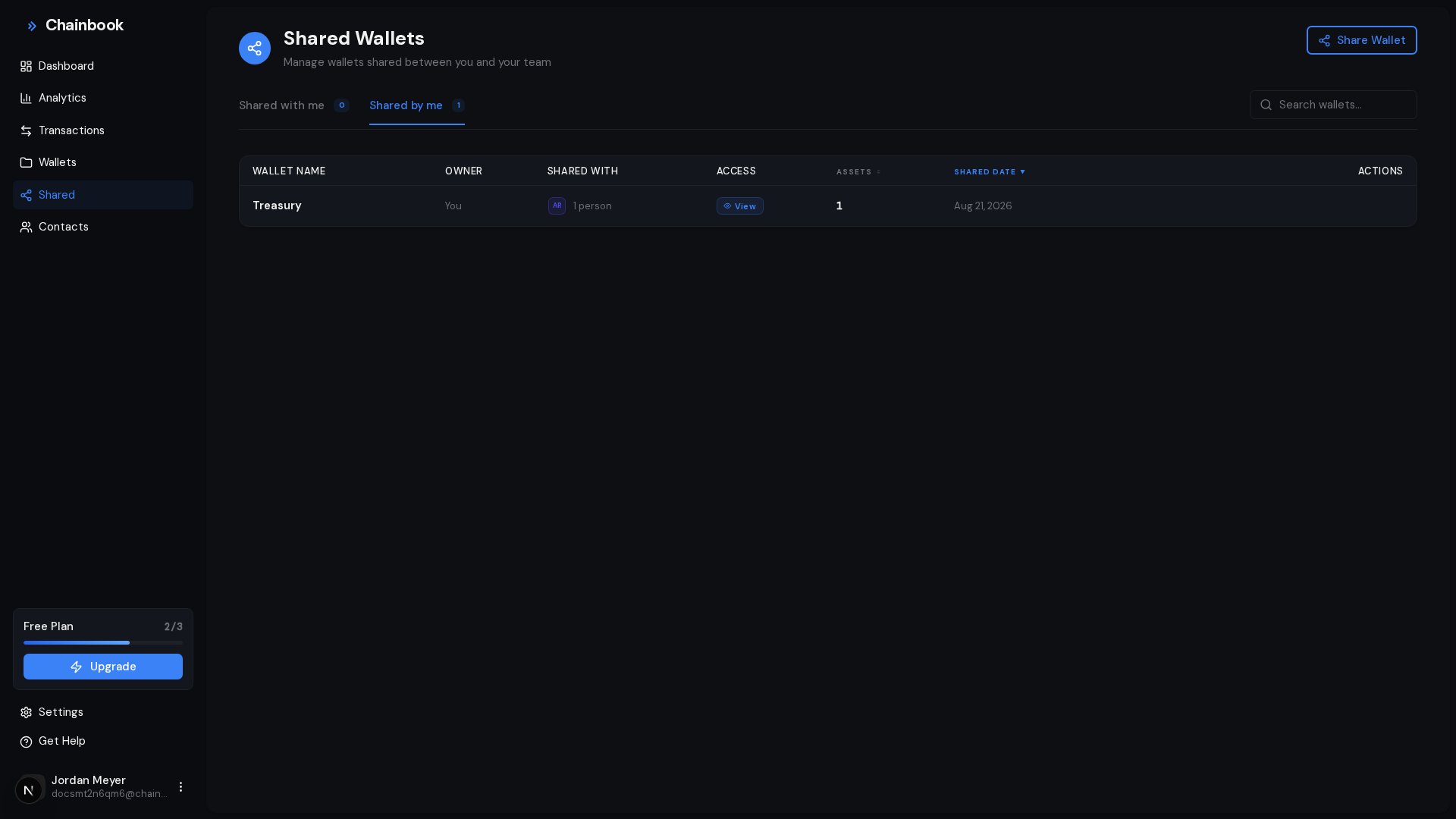
- The wallet appears in their Shared section
- They can view all assets and transactions in the wallet, with permissions based on their role
Roles and Permissions
Every member of a shared wallet has one of three roles:
You choose Viewer or Editor for each person when you invite them, and
you can change a member’s role at any time from the Share Wallet dialog.
Some actions are always Owner-only: adding assets, inviting members, and
deleting the wallet.
Sharing a Wallet
There are two ways to open the Share Wallet dialog:- On the Wallets page, open the wallet row’s ⋮ menu and click Share
- On the Shared page, click Share Wallet
1
Open the Share Wallet dialog
Use the wallet row’s ⋮ menu → Share, or go to Shared and click
Share Wallet.
2
Enter email addresses
Type an email address and press Enter (or comma) to add it. You can
add several people at once, and choose Viewer or Editor for each.
3
Send invitations
Click Invite to send the email invitations.
Each invitee receives an email with a link that grants access when opened.
Invitees don’t need a Chainbook account yet. The invitation is tied to their
email address — when they sign up with that email, the invitation is accepted
automatically.
Managing Members
Viewing Current Members
The Share Wallet dialog also lists everyone with access:- Open the Share Wallet dialog for the wallet (wallet row ⋮ → Share, or Shared → Share Wallet)
- View the list of members, their roles, and their status
Changing a Member’s Role
In the member list, switch a member between Viewer and Editor at any time. The change applies immediately.Re-sending an Invitation
If someone didn’t receive or lost their invitation, simply invite the same email address again. The new invitation replaces the old one, and a fresh email is sent.Removing Members
To revoke someone’s access:1
Open the Share Wallet dialog
Open the wallet’s Share Wallet dialog.
2
Find the member
Locate the person you want to remove.
3
Click Remove
Click the Remove button next to their name.
4
Confirm
Confirm the removal.
Accepting Invitations
When someone shares a wallet with you:1
Check your email
Look for an invitation email from Chainbook.
2
Click the invitation link
Clicking the link accepts the invitation — there’s no separate accept step.
3
Sign in or create an account
If you’re new, sign up using the invited email address — the shared wallet
is connected to your account automatically. If you already have an
account, just sign in.
The wallet now appears in your Shared section.
Invitation links expire after 7 days. If yours has expired, ask the wallet
owner to invite you again.
Leaving a Shared Wallet
To remove yourself from a wallet someone shared with you:- Go to Shared in the sidebar
- Find the wallet you want to leave
- Click the Leave button
- Confirm your departure
Leaving a shared wallet removes your access. Contact the owner to be re-invited.
Viewing Shared Wallets
All wallets shared with you appear in the Shared section:- Navigate to Shared in the sidebar
- See all wallets others have shared with you
- Click any wallet to view its assets and transactions
What Each Role Can Do
Use Cases
Business Partners
Share wallets with business partners to provide visibility into:- Shared treasury assets
- Joint venture transactions
- Partnership financial activity
Client Access
If you manage assets for clients:- Create a wallet for each client
- Share the wallet with them as Viewers
- They can monitor their own transactions
Team Finance
For finance teams:- Create wallets for company assets
- Share with relevant team members — give bookkeepers the Editor role so they can categorize and describe transactions
- Everyone stays informed on transactions
Accountant Access
Share wallets with your accountant:- As a Viewer they can review transaction history, or as an Editor they can categorize as they go
- Export data for tax preparation
- No need to share raw wallet data separately
Plan Limits
How many people you can share a single wallet with depends on your plan:
Limits are counted per wallet, and both accepted members and pending
invitations occupy a seat.
See Billing & Plans for the complete feature comparison.
Security Considerations
Shared wallets give members visibility into wallet addresses and all transactions.
- Asset addresses become visible - Members see all tracked addresses
- Transaction history is shared - All historical data is accessible
- Contacts are visible - Your contact labels appear for members
- Categories are visible - Your categorization is shown
- Editors can make changes - Editors can update categories, descriptions, and contacts
Frequently Asked Questions
Can members edit transactions?
Can members edit transactions?
Editors can edit transaction categories and descriptions, manage categories, and edit contacts. Viewers have read-only access. Only the owner can add assets or change the wallet itself.
Can I transfer wallet ownership?
Can I transfer wallet ownership?
Currently, wallets cannot be transferred. The original creator remains the owner. Contact support if you need to transfer ownership.
What happens if the owner deletes the wallet?
What happens if the owner deletes the wallet?
If the owner deletes a wallet, it’s removed for all members, and every member receives an email letting them know the wallet was deleted.