> ## Documentation Index
> Fetch the complete documentation index at: https://help.chainbook.app/llms.txt
> Use this file to discover all available pages before exploring further.
# Wallets
> Organize your assets into wallets for better management
Wallets are the foundation of how you organize your crypto tracking in Chainbook. Each wallet contains one or more assets from the same blockchain network.
## What is a Wallet?
A wallet is a container that groups related assets together. Think of wallets as folders that help you organize your crypto activities by:
* **Purpose** - Personal vs. Business
* **Entity** - Different companies or clients
* **Strategy** - Trading, Savings, DeFi activities
* **Time period** - Tax years or accounting periods
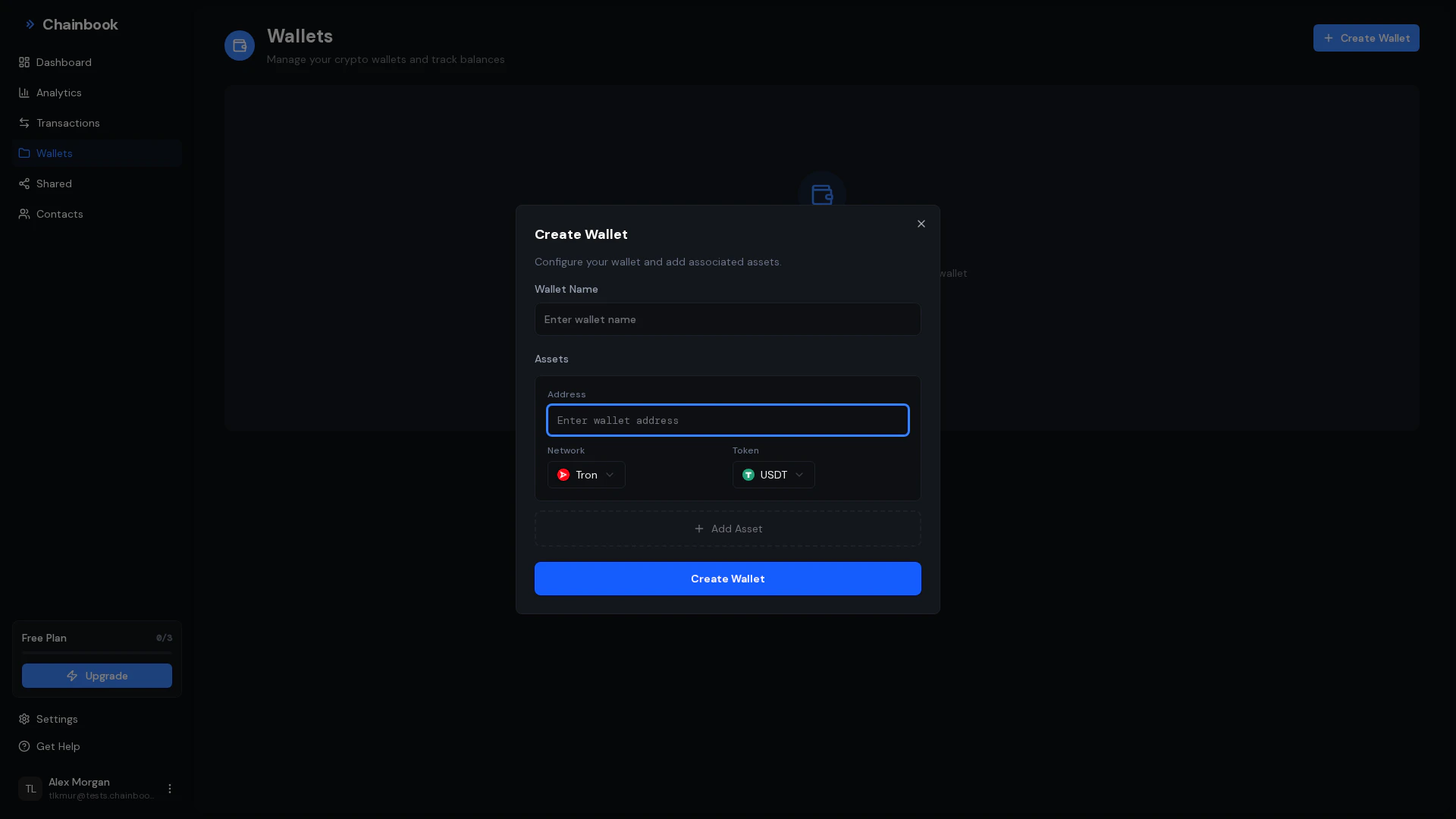 ## Creating a Wallet
Navigate to **Wallets** from the sidebar.
Click the **New Wallet** button in the top right corner.
Fill in the wallet details:
| Field | Description |
| ----------- | ---------------------------------- |
| **Name** | A descriptive name for your wallet |
| **Network** | Select TRON or Ethereum |
| **Assets** | Enter one or more asset addresses |
Network selection is permanent. You cannot change a wallet's network after creation.
Enter asset addresses one per line or paste multiple addresses at once.
```
TLa2f6VPqDgRE67v1736s7bJ8Ray5wYjU7
TN3W4H6rK7z1L5B9M2c4X8Y6Z0P3Q7R1S5
```
```
0x742d35Cc6634C0532925a3b844Bc9e7595f5aB00
0x1234567890123456789012345678901234567890
```
Chainbook validates addresses before allowing you to save.
Click **Create Wallet** to save. Asset syncing begins automatically.
## Managing Wallets
### Viewing Wallet Details
Click on any wallet card to view:
* List of assets in the wallet
* Sync status for each asset
* Total transaction count
* Last sync timestamp
### Editing a Wallet
To edit an existing wallet:
1. Click on the wallet to open it
2. Click the **Edit** button (pencil icon)
3. Modify the wallet name or manage assets
4. Click **Save Changes**
You can add or remove assets from a wallet at any time. Removing an asset also removes its transaction history from the wallet.
### Adding Assets to a Wallet
Click on the wallet you want to modify.
Click the **Add Asset** button.
Enter the new asset address and click **Add**.
New assets begin syncing immediately after being added.
### Removing Assets
Removing an asset from a wallet permanently deletes all associated transaction data. This action cannot be undone.
To remove an asset:
1. Open the wallet
2. Find the asset you want to remove
3. Click the **Remove** button (trash icon)
4. Confirm the deletion
### Deleting a Wallet
To delete an entire wallet:
1. Open the wallet settings
2. Scroll to the bottom
3. Click **Delete Wallet**
4. Type the wallet name to confirm
5. Click **Delete**
Deleting a wallet permanently removes all assets and transaction data. This cannot be undone.
## Asset Sync Status
Each asset shows its sync status:
| Status | Description |
| ----------- | ------------------------------------- |
| **Synced** | Asset is fully synced and up to date |
| **Syncing** | Initial sync or update in progress |
| **Error** | Sync failed, will retry automatically |
| **Paused** | Syncing temporarily paused |
### Sync Progress
During initial sync, you'll see:
* Progress percentage
* Number of transactions imported
* Estimated completion time
Large assets with thousands of transactions may take several minutes to fully sync. You can continue using other parts of Chainbook while syncing completes.
## Wallet Organization Tips
### Use Clear Naming
Choose descriptive names that help you quickly identify each wallet:
Good names:
* "Personal Savings - TRON"
* "Acme Corp Treasury"
* "2024 Trading Account"
Avoid generic names:
* "Wallet 1"
* "Test"
* "Asset"
### Separate by Purpose
Create different wallets for different purposes:
| Wallet | Purpose |
| ------------------ | ------------------------------ |
| Personal Holdings | Long-term personal investments |
| Trading Account | Active trading and DeFi |
| Business Treasury | Company funds and operations |
| Client - Acme Corp | Managing client assets |
### Consider Tax Reporting
If you need to separate transactions for tax purposes:
* Create wallets by tax year
* Use separate wallets for personal vs. business
* Keep trading and investment accounts separate
## Limits
Wallet and asset limits depend on your subscription plan.
| Plan | Wallets | Assets per Wallet | Total Assets |
| ---- | --------- | ----------------- | ------------ |
| Free | 2 | 3 | 5 |
| Pro | 10 | 10 | 50 |
| Team | Unlimited | Unlimited | Unlimited |
See [Billing & Plans](/features/billing) for more details about subscription tiers.
## Creating a Wallet
Navigate to **Wallets** from the sidebar.
Click the **New Wallet** button in the top right corner.
Fill in the wallet details:
| Field | Description |
| ----------- | ---------------------------------- |
| **Name** | A descriptive name for your wallet |
| **Network** | Select TRON or Ethereum |
| **Assets** | Enter one or more asset addresses |
Network selection is permanent. You cannot change a wallet's network after creation.
Enter asset addresses one per line or paste multiple addresses at once.
```
TLa2f6VPqDgRE67v1736s7bJ8Ray5wYjU7
TN3W4H6rK7z1L5B9M2c4X8Y6Z0P3Q7R1S5
```
```
0x742d35Cc6634C0532925a3b844Bc9e7595f5aB00
0x1234567890123456789012345678901234567890
```
Chainbook validates addresses before allowing you to save.
Click **Create Wallet** to save. Asset syncing begins automatically.
## Managing Wallets
### Viewing Wallet Details
Click on any wallet card to view:
* List of assets in the wallet
* Sync status for each asset
* Total transaction count
* Last sync timestamp
### Editing a Wallet
To edit an existing wallet:
1. Click on the wallet to open it
2. Click the **Edit** button (pencil icon)
3. Modify the wallet name or manage assets
4. Click **Save Changes**
You can add or remove assets from a wallet at any time. Removing an asset also removes its transaction history from the wallet.
### Adding Assets to a Wallet
Click on the wallet you want to modify.
Click the **Add Asset** button.
Enter the new asset address and click **Add**.
New assets begin syncing immediately after being added.
### Removing Assets
Removing an asset from a wallet permanently deletes all associated transaction data. This action cannot be undone.
To remove an asset:
1. Open the wallet
2. Find the asset you want to remove
3. Click the **Remove** button (trash icon)
4. Confirm the deletion
### Deleting a Wallet
To delete an entire wallet:
1. Open the wallet settings
2. Scroll to the bottom
3. Click **Delete Wallet**
4. Type the wallet name to confirm
5. Click **Delete**
Deleting a wallet permanently removes all assets and transaction data. This cannot be undone.
## Asset Sync Status
Each asset shows its sync status:
| Status | Description |
| ----------- | ------------------------------------- |
| **Synced** | Asset is fully synced and up to date |
| **Syncing** | Initial sync or update in progress |
| **Error** | Sync failed, will retry automatically |
| **Paused** | Syncing temporarily paused |
### Sync Progress
During initial sync, you'll see:
* Progress percentage
* Number of transactions imported
* Estimated completion time
Large assets with thousands of transactions may take several minutes to fully sync. You can continue using other parts of Chainbook while syncing completes.
## Wallet Organization Tips
### Use Clear Naming
Choose descriptive names that help you quickly identify each wallet:
Good names:
* "Personal Savings - TRON"
* "Acme Corp Treasury"
* "2024 Trading Account"
Avoid generic names:
* "Wallet 1"
* "Test"
* "Asset"
### Separate by Purpose
Create different wallets for different purposes:
| Wallet | Purpose |
| ------------------ | ------------------------------ |
| Personal Holdings | Long-term personal investments |
| Trading Account | Active trading and DeFi |
| Business Treasury | Company funds and operations |
| Client - Acme Corp | Managing client assets |
### Consider Tax Reporting
If you need to separate transactions for tax purposes:
* Create wallets by tax year
* Use separate wallets for personal vs. business
* Keep trading and investment accounts separate
## Limits
Wallet and asset limits depend on your subscription plan.
| Plan | Wallets | Assets per Wallet | Total Assets |
| ---- | --------- | ----------------- | ------------ |
| Free | 2 | 3 | 5 |
| Pro | 10 | 10 | 50 |
| Team | Unlimited | Unlimited | Unlimited |
See [Billing & Plans](/features/billing) for more details about subscription tiers.