> ## Documentation Index
> Fetch the complete documentation index at: https://help.chainbook.app/llms.txt
> Use this file to discover all available pages before exploring further.
# Transactions
> View, filter, and manage your crypto transactions
The Transactions view is your central hub for viewing and managing all blockchain activity across your assets.
## Transaction List
The transactions page displays all synced transactions from your assets in a sortable, filterable table.
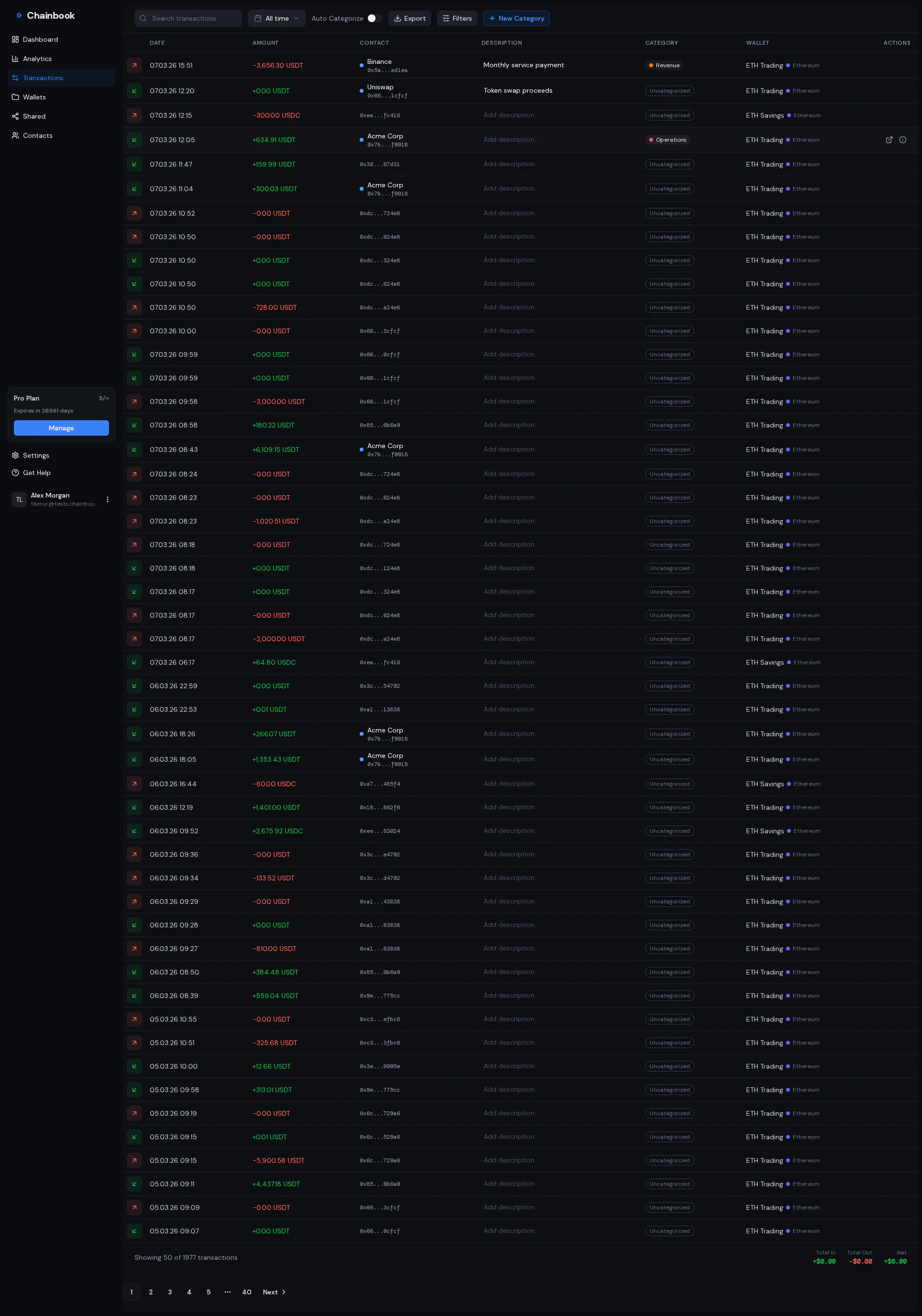 ### Transaction Information
Each transaction shows:
| Column | Description |
| ------------- | ---------------------------------------------------- |
| **Date** | When the transaction was confirmed on the blockchain |
| **Amount** | Transaction value with token symbol |
| **Direction** | Incoming (↓) or Outgoing (↑) |
| **From/To** | Sender and recipient addresses or contact names |
| **Category** | Assigned category (if any) |
| **Wallet** | Which wallet the transaction belongs to |
### Transaction Details
Click any transaction to view full details:
* **Transaction Hash** - Unique blockchain identifier
* **Block Number** - Block in which the transaction was confirmed
* **Asset Address** - Which of your assets was involved
* **Network** - TRON or Ethereum
* **Description** - Custom notes you've added
* **Category** - Classification for reporting
## Filtering Transactions
Use filters to find specific transactions quickly.
### Available Filters
Show transactions from a specific wallet only.
Filter by assigned category.
Show transactions involving a specific contact.
Filter by custom date range.
### Filter by Wallet
To view transactions from a single wallet:
1. Click the **Wallet** dropdown
2. Select the wallet name
3. The list updates to show only that wallet's transactions
### Filter by Date Range
Click the date range selector in the filter bar.
Select from presets:
* Today
* Last 7 days
* Last 30 days
* This month
* Last month
* Custom range
Click **Apply** to filter the transaction list.
### Filter by Contact
Show transactions involving a specific address:
1. Click the **Contact** dropdown
2. Select a contact from your contact book
3. Transactions with that address as sender or recipient are displayed
### Exclude Small Transactions
Toggle "Exclude small transactions" to hide dust transactions and focus on significant activity.
Small transactions (below a threshold) can be hidden to reduce noise in your transaction list.
## Editing Transactions
You can add descriptions and categories to any transaction.
### Adding a Description
Select the transaction you want to edit.
Click on the description field and enter your notes.
Example descriptions:
* "Monthly subscription payment"
* "Withdrawal to exchange"
* "Client payment - Invoice #1234"
Press Enter or click outside the field to save.
### Assigning a Category
Select the transaction to categorize.
Click the category dropdown and choose from your categories.
Create custom categories in Settings → Categories before assigning them.
The transaction now shows the assigned category.
## Understanding Transaction Direction
Transactions are classified by direction:
| Direction | Icon | Meaning |
| --------- | ------- | ------------------------------- |
| **IN** | ↓ Green | Funds received into your wallet |
| **OUT** | ↑ Red | Funds sent from your wallet |
### Internal Transfers
When you transfer between your own tracked assets:
* The sending asset shows an **OUT** transaction
* The receiving asset shows an **IN** transaction
* Both appear in your transaction list
Use the same category (e.g., "Internal Transfer") for both sides to clearly identify these movements in reports.
## Exporting Transactions
Export your transactions as CSV for accounting or further analysis.
Set any filters to export only specific transactions.
Click the **Export** button in the top right corner.
Your browser downloads the CSV file with all filtered transactions.
### CSV Format
The exported CSV includes:
| Column | Description |
| ----------- | ---------------------------------- |
| Date | Transaction timestamp |
| Amount | Value with sign (+/-) and currency |
| From | Sender address or contact name |
| To | Recipient address or contact name |
| Description | Your custom notes |
| Category | Assigned category name |
| Wallet | Wallet name |
| Asset | Your asset address |
| Hash | Blockchain transaction hash |
See the [Exporting Data Guide](/guides/exporting-data) for detailed export workflows.
## Pagination
Transactions are paginated for performance:
* **50 transactions per page** by default
* Navigate using **Previous** and **Next** buttons
* Page indicator shows current position
Apply filters to reduce the number of transactions and find what you need faster.
## Transaction States
| State | Description |
| ------------- | ----------------------------------------------------------------------------------------- |
| **Confirmed** | Transaction is finalized on the blockchain |
| **Pending** | Transaction is not yet confirmed (rare in Chainbook, as we import confirmed transactions) |
Chainbook only imports confirmed transactions. Pending transactions from your wallet are not shown until confirmed.
## Frequently Asked Questions
Possible reasons:
* Asset is still syncing (check status)
* Transaction hasn't been confirmed yet
* Transaction is below the "small transaction" filter threshold
* Asset address was recently added
Try a manual sync or wait for the next automatic sync.
No, transactions cannot be deleted individually. They represent actual blockchain activity. However, you can remove an asset to remove all its transactions.
Use filters to narrow down:
1. Filter by date when the transaction occurred
2. Filter by the wallet/asset involved
3. Filter by contact if you know the other party
4. Use the search function if available
Chainbook displays raw blockchain amounts with proper decimal handling. Slight differences may occur due to:
* Different decimal precision display
* Token decimal configuration
* Rounding in display vs. actual value
### Transaction Information
Each transaction shows:
| Column | Description |
| ------------- | ---------------------------------------------------- |
| **Date** | When the transaction was confirmed on the blockchain |
| **Amount** | Transaction value with token symbol |
| **Direction** | Incoming (↓) or Outgoing (↑) |
| **From/To** | Sender and recipient addresses or contact names |
| **Category** | Assigned category (if any) |
| **Wallet** | Which wallet the transaction belongs to |
### Transaction Details
Click any transaction to view full details:
* **Transaction Hash** - Unique blockchain identifier
* **Block Number** - Block in which the transaction was confirmed
* **Asset Address** - Which of your assets was involved
* **Network** - TRON or Ethereum
* **Description** - Custom notes you've added
* **Category** - Classification for reporting
## Filtering Transactions
Use filters to find specific transactions quickly.
### Available Filters
Show transactions from a specific wallet only.
Filter by assigned category.
Show transactions involving a specific contact.
Filter by custom date range.
### Filter by Wallet
To view transactions from a single wallet:
1. Click the **Wallet** dropdown
2. Select the wallet name
3. The list updates to show only that wallet's transactions
### Filter by Date Range
Click the date range selector in the filter bar.
Select from presets:
* Today
* Last 7 days
* Last 30 days
* This month
* Last month
* Custom range
Click **Apply** to filter the transaction list.
### Filter by Contact
Show transactions involving a specific address:
1. Click the **Contact** dropdown
2. Select a contact from your contact book
3. Transactions with that address as sender or recipient are displayed
### Exclude Small Transactions
Toggle "Exclude small transactions" to hide dust transactions and focus on significant activity.
Small transactions (below a threshold) can be hidden to reduce noise in your transaction list.
## Editing Transactions
You can add descriptions and categories to any transaction.
### Adding a Description
Select the transaction you want to edit.
Click on the description field and enter your notes.
Example descriptions:
* "Monthly subscription payment"
* "Withdrawal to exchange"
* "Client payment - Invoice #1234"
Press Enter or click outside the field to save.
### Assigning a Category
Select the transaction to categorize.
Click the category dropdown and choose from your categories.
Create custom categories in Settings → Categories before assigning them.
The transaction now shows the assigned category.
## Understanding Transaction Direction
Transactions are classified by direction:
| Direction | Icon | Meaning |
| --------- | ------- | ------------------------------- |
| **IN** | ↓ Green | Funds received into your wallet |
| **OUT** | ↑ Red | Funds sent from your wallet |
### Internal Transfers
When you transfer between your own tracked assets:
* The sending asset shows an **OUT** transaction
* The receiving asset shows an **IN** transaction
* Both appear in your transaction list
Use the same category (e.g., "Internal Transfer") for both sides to clearly identify these movements in reports.
## Exporting Transactions
Export your transactions as CSV for accounting or further analysis.
Set any filters to export only specific transactions.
Click the **Export** button in the top right corner.
Your browser downloads the CSV file with all filtered transactions.
### CSV Format
The exported CSV includes:
| Column | Description |
| ----------- | ---------------------------------- |
| Date | Transaction timestamp |
| Amount | Value with sign (+/-) and currency |
| From | Sender address or contact name |
| To | Recipient address or contact name |
| Description | Your custom notes |
| Category | Assigned category name |
| Wallet | Wallet name |
| Asset | Your asset address |
| Hash | Blockchain transaction hash |
See the [Exporting Data Guide](/guides/exporting-data) for detailed export workflows.
## Pagination
Transactions are paginated for performance:
* **50 transactions per page** by default
* Navigate using **Previous** and **Next** buttons
* Page indicator shows current position
Apply filters to reduce the number of transactions and find what you need faster.
## Transaction States
| State | Description |
| ------------- | ----------------------------------------------------------------------------------------- |
| **Confirmed** | Transaction is finalized on the blockchain |
| **Pending** | Transaction is not yet confirmed (rare in Chainbook, as we import confirmed transactions) |
Chainbook only imports confirmed transactions. Pending transactions from your wallet are not shown until confirmed.
## Frequently Asked Questions
Possible reasons:
* Asset is still syncing (check status)
* Transaction hasn't been confirmed yet
* Transaction is below the "small transaction" filter threshold
* Asset address was recently added
Try a manual sync or wait for the next automatic sync.
No, transactions cannot be deleted individually. They represent actual blockchain activity. However, you can remove an asset to remove all its transactions.
Use filters to narrow down:
1. Filter by date when the transaction occurred
2. Filter by the wallet/asset involved
3. Filter by contact if you know the other party
4. Use the search function if available
Chainbook displays raw blockchain amounts with proper decimal handling. Slight differences may occur due to:
* Different decimal precision display
* Token decimal configuration
* Rounding in display vs. actual value