> ## Documentation Index
> Fetch the complete documentation index at: https://help.chainbook.app/llms.txt
> Use this file to discover all available pages before exploring further.
# Shared Wallets
> Collaborate with team members on transaction tracking
Chainbook's collaboration features let you share wallets with team members, partners, or clients.
## How Sharing Works
When you share a wallet with someone:
1. They receive an email invitation
2. They can accept or decline the invitation
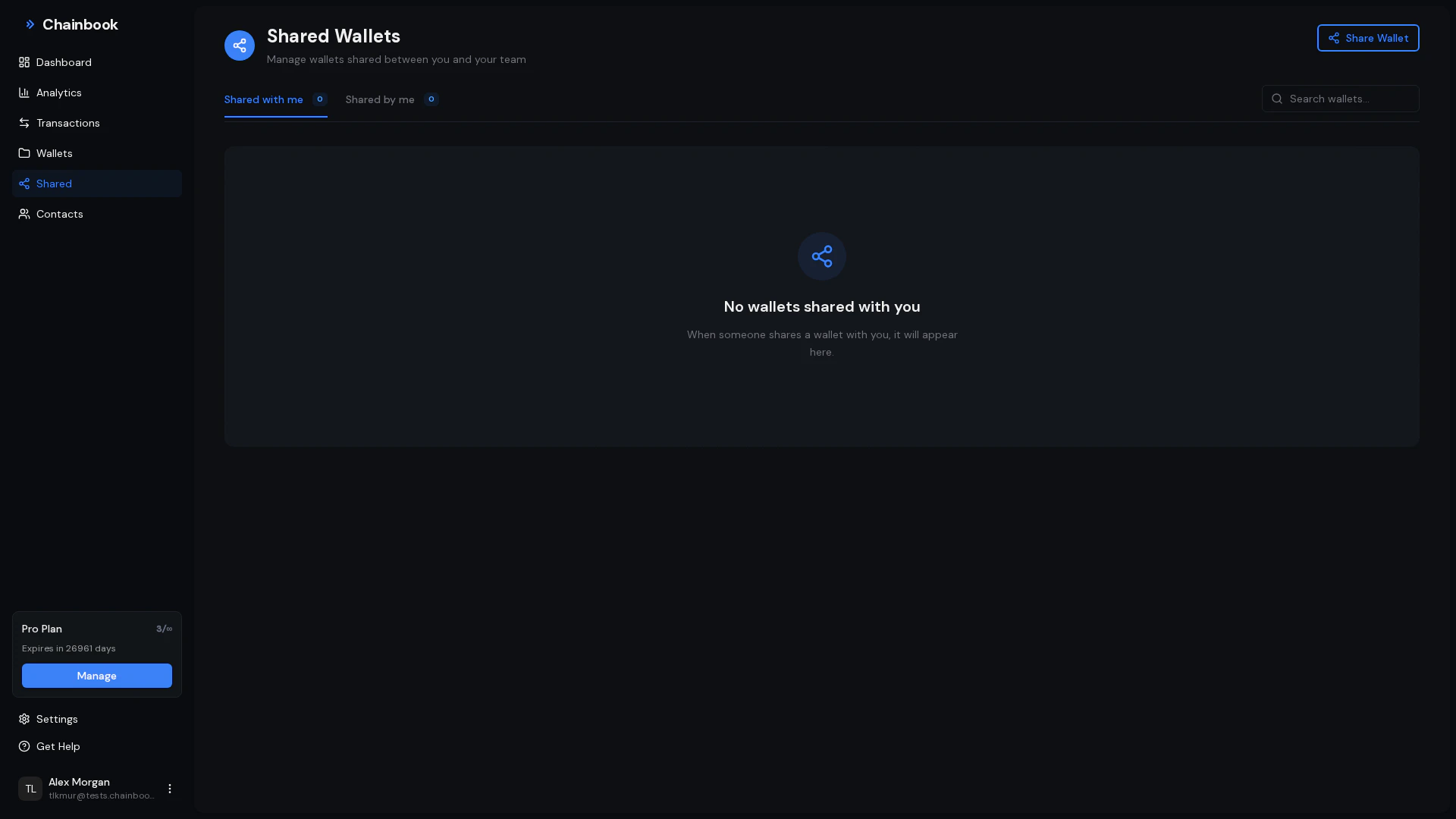
3. Once accepted, they see the wallet in their "Shared" section
4. They can view all assets and transactions in the wallet
 ## Roles and Permissions
| Role | Capabilities |
| ---------- | ---------------------------------------------------------------------------- |
| **Owner** | Full control - edit wallet, add assets, invite/remove members, delete wallet |
| **Member** | View access - see assets, transactions, categories, and contacts |
Currently, all invited members have view-only access. Full permission controls are coming soon.
## Sharing a Wallet
Navigate to **Wallets** and click on the wallet you want to share.
Click the **Share** or **Members** button to open sharing settings.
Type the email address of the person you want to invite.
If they don't have a Chainbook account, one will be created for them automatically.
Click **Invite** to send the email invitation.
The invitee receives an email with a link to accept.
## Managing Members
### Viewing Current Members
To see who has access to a wallet:
1. Open the wallet
2. Click **Members** or the team icon
3. View the list of members and their status
**Member statuses:**
| Status | Meaning |
| ----------- | ------------------------------- |
| **Pending** | Invited but hasn't accepted yet |
| **Active** | Accepted and has access |
### Resending Invitations
If someone didn't receive or lost their invitation:
1. Open wallet members
2. Find the pending member
3. Click **Resend** to send a new invitation email
### Removing Members
To revoke someone's access:
Go to the wallet and click **Members**.
Locate the person you want to remove.
Click the **Remove** button next to their name.
Confirm the removal.
The member immediately loses access but can be re-invited later.
## Accepting Invitations
When someone shares a wallet with you:
Look for an invitation email from Chainbook.
Click the link in the email to go to Chainbook.
If you're new, create an account with the invited email address.
If you have an account, sign in.
On the Shared page, click **Accept** next to the pending invitation.
The wallet now appears in your Shared section.
## Declining Invitations
If you don't want access to a shared wallet:
1. Go to **Shared** in the sidebar
2. Find the pending invitation
3. Click **Decline**
4. The invitation is removed
You can be re-invited later if you change your mind.
## Leaving a Shared Wallet
To remove yourself from a wallet someone shared with you:
1. Go to **Shared** in the sidebar
2. Find the wallet you want to leave
3. Click the **Leave** button
4. Confirm your departure
Leaving a shared wallet removes your access. Contact the owner to be re-invited.
## Viewing Shared Wallets
All wallets shared with you appear in the **Shared** section:
* Navigate to **Shared** in the sidebar
* See all wallets others have shared with you
* Click any wallet to view its assets and transactions
### Shared vs. Owned Wallets
| Feature | Your Wallets | Shared Wallets |
| ----------------- | ------------ | -------------- |
| View assets | Yes | Yes |
| View transactions | Yes | Yes |
| Add assets | Yes | No |
| Edit wallet | Yes | No |
| Invite members | Yes | No |
| Delete wallet | Yes | No |
## Use Cases
### Business Partners
Share wallets with business partners to provide visibility into:
* Shared treasury assets
* Joint venture transactions
* Partnership financial activity
### Client Access
If you manage assets for clients:
* Create a wallet for each client
* Share the wallet with them
* They can monitor their own transactions
### Team Finance
For finance teams:
* Create wallets for company assets
* Share with relevant team members
* Everyone stays informed on transactions
### Accountant Access
Share wallets with your accountant:
* They can view transaction history
* Export data for tax preparation
* No need to share raw wallet data separately
## Security Considerations
Shared wallets give members visibility into wallet addresses and all transactions.
Before sharing, consider:
* **Asset addresses become visible** - Members see all tracked addresses
* **Transaction history is shared** - All historical data is accessible
* **Contacts are visible** - Your contact labels appear for members
* **Categories are visible** - Your categorization is shown
Only share wallets with people you trust with this information.
## Frequently Asked Questions
Not currently. Members have view-only access. Only the wallet owner can add descriptions and categories.
Yes, you can share with any email address. They'll need to create a Chainbook account if they don't have one.
Sharing limits depend on your plan. Free plans have limited sharing; Team plans offer unlimited members.
Currently, wallets cannot be transferred. The original creator remains the owner. Contact support if you need to transfer ownership.
If the owner deletes a wallet, it's removed for all members. Members are not notified in advance.
## Roles and Permissions
| Role | Capabilities |
| ---------- | ---------------------------------------------------------------------------- |
| **Owner** | Full control - edit wallet, add assets, invite/remove members, delete wallet |
| **Member** | View access - see assets, transactions, categories, and contacts |
Currently, all invited members have view-only access. Full permission controls are coming soon.
## Sharing a Wallet
Navigate to **Wallets** and click on the wallet you want to share.
Click the **Share** or **Members** button to open sharing settings.
Type the email address of the person you want to invite.
If they don't have a Chainbook account, one will be created for them automatically.
Click **Invite** to send the email invitation.
The invitee receives an email with a link to accept.
## Managing Members
### Viewing Current Members
To see who has access to a wallet:
1. Open the wallet
2. Click **Members** or the team icon
3. View the list of members and their status
**Member statuses:**
| Status | Meaning |
| ----------- | ------------------------------- |
| **Pending** | Invited but hasn't accepted yet |
| **Active** | Accepted and has access |
### Resending Invitations
If someone didn't receive or lost their invitation:
1. Open wallet members
2. Find the pending member
3. Click **Resend** to send a new invitation email
### Removing Members
To revoke someone's access:
Go to the wallet and click **Members**.
Locate the person you want to remove.
Click the **Remove** button next to their name.
Confirm the removal.
The member immediately loses access but can be re-invited later.
## Accepting Invitations
When someone shares a wallet with you:
Look for an invitation email from Chainbook.
Click the link in the email to go to Chainbook.
If you're new, create an account with the invited email address.
If you have an account, sign in.
On the Shared page, click **Accept** next to the pending invitation.
The wallet now appears in your Shared section.
## Declining Invitations
If you don't want access to a shared wallet:
1. Go to **Shared** in the sidebar
2. Find the pending invitation
3. Click **Decline**
4. The invitation is removed
You can be re-invited later if you change your mind.
## Leaving a Shared Wallet
To remove yourself from a wallet someone shared with you:
1. Go to **Shared** in the sidebar
2. Find the wallet you want to leave
3. Click the **Leave** button
4. Confirm your departure
Leaving a shared wallet removes your access. Contact the owner to be re-invited.
## Viewing Shared Wallets
All wallets shared with you appear in the **Shared** section:
* Navigate to **Shared** in the sidebar
* See all wallets others have shared with you
* Click any wallet to view its assets and transactions
### Shared vs. Owned Wallets
| Feature | Your Wallets | Shared Wallets |
| ----------------- | ------------ | -------------- |
| View assets | Yes | Yes |
| View transactions | Yes | Yes |
| Add assets | Yes | No |
| Edit wallet | Yes | No |
| Invite members | Yes | No |
| Delete wallet | Yes | No |
## Use Cases
### Business Partners
Share wallets with business partners to provide visibility into:
* Shared treasury assets
* Joint venture transactions
* Partnership financial activity
### Client Access
If you manage assets for clients:
* Create a wallet for each client
* Share the wallet with them
* They can monitor their own transactions
### Team Finance
For finance teams:
* Create wallets for company assets
* Share with relevant team members
* Everyone stays informed on transactions
### Accountant Access
Share wallets with your accountant:
* They can view transaction history
* Export data for tax preparation
* No need to share raw wallet data separately
## Security Considerations
Shared wallets give members visibility into wallet addresses and all transactions.
Before sharing, consider:
* **Asset addresses become visible** - Members see all tracked addresses
* **Transaction history is shared** - All historical data is accessible
* **Contacts are visible** - Your contact labels appear for members
* **Categories are visible** - Your categorization is shown
Only share wallets with people you trust with this information.
## Frequently Asked Questions
Not currently. Members have view-only access. Only the wallet owner can add descriptions and categories.
Yes, you can share with any email address. They'll need to create a Chainbook account if they don't have one.
Sharing limits depend on your plan. Free plans have limited sharing; Team plans offer unlimited members.
Currently, wallets cannot be transferred. The original creator remains the owner. Contact support if you need to transfer ownership.
If the owner deletes a wallet, it's removed for all members. Members are not notified in advance.