> ## Documentation Index
> Fetch the complete documentation index at: https://help.chainbook.app/llms.txt
> Use this file to discover all available pages before exploring further.
# Contacts
> Create a contact book to label blockchain addresses with friendly names
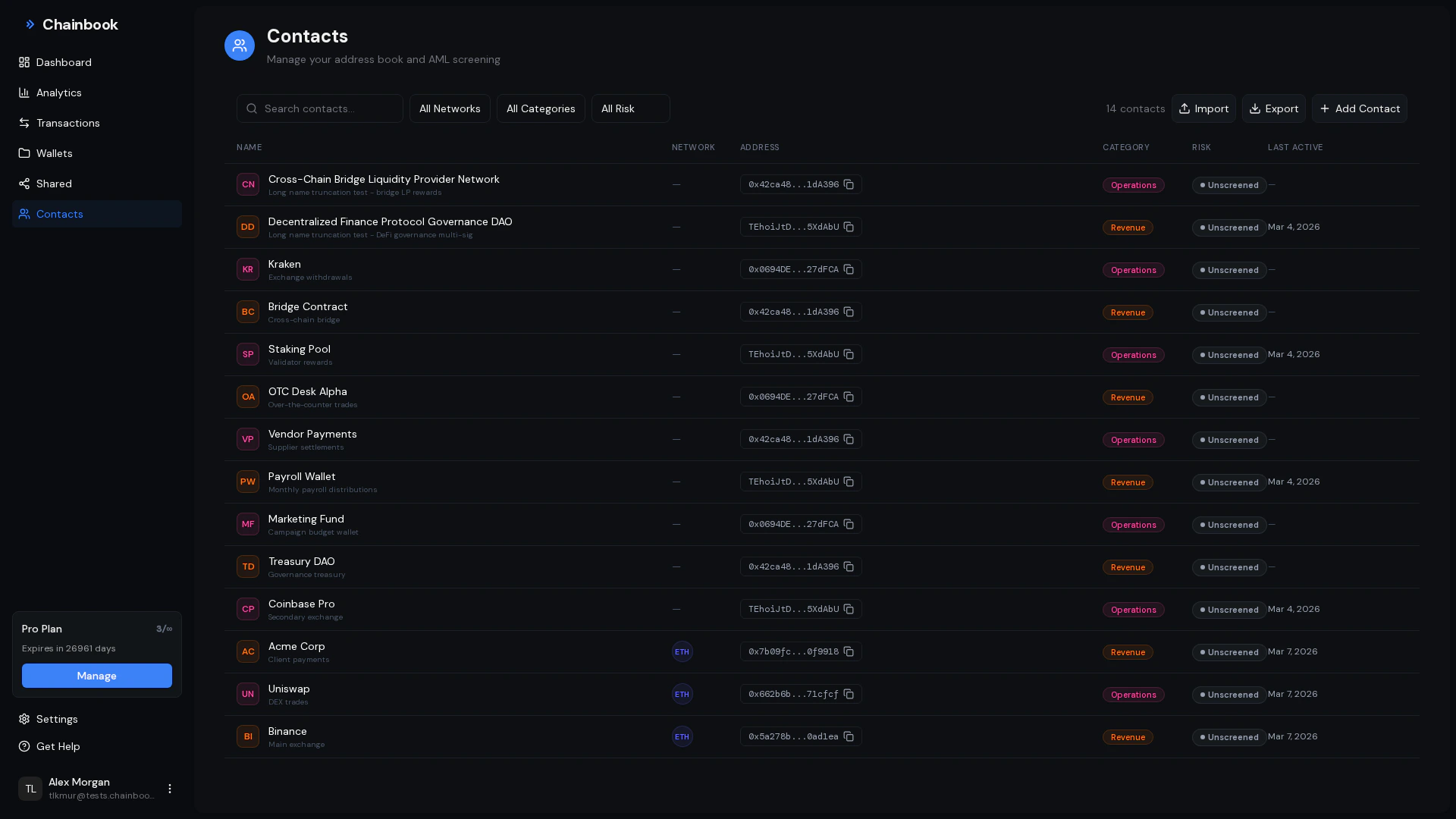
Contacts transform cryptic wallet addresses into recognizable names throughout Chainbook.
## What are Contacts?
Contacts are your address book for blockchain addresses. Instead of seeing:
```
TLa2f6VPqDgRE67v1736s7bJ8Ray5wYjU7
```
You'll see the contact name you've assigned:
```
Acme Corp - Treasury
```
 ## Benefits of Using Contacts
Instantly recognize who you're transacting with.
Exports and charts show names instead of addresses.
Filter transactions by contact name.
Spot trends with specific partners over time.
## Managing Contacts
### Creating a Contact
Click **Contacts** in the sidebar.
Click the **Add Contact** button.
| Field | Description | Example |
| ----------- | ------------------------- | -------------------- |
| **Name** | Friendly display name | "Binance Hot Wallet" |
| **Address** | Blockchain wallet address | `0x742d35...` |
The address can be from any supported network (TRON or Ethereum).
Click **Create** to add the contact.
The contact name now appears everywhere this address is referenced.
### Editing a Contact
1. Go to **Contacts**
2. Find the contact you want to edit
3. Click the **Edit** button (pencil icon)
4. Update the name or address
5. Click **Save**
Changing a contact's name updates it throughout all historical transactions.
### Deleting a Contact
1. Go to **Contacts**
2. Find the contact to remove
3. Click the **Delete** button (trash icon)
4. Confirm deletion
Deleting a contact reverts all displays back to showing the raw wallet address.
## Where Contacts Appear
Once you create a contact, the name replaces the address in:
| Location | Before | After |
| ------------------- | ------------------------------------ | ------------------ |
| Transaction list | `TLa2f6...U7` | "Alice - Personal" |
| Transaction details | `TLa2f6VPqDgRE67v1736s7bJ8Ray5wYjU7` | "Alice - Personal" |
| Dashboard charts | `0x742d...` | "Binance" |
| CSV exports | `0x742d35Cc6634...` | "Binance" |
| Filters | Address dropdown | Name dropdown |
## Contact Organization Tips
### Naming Conventions
Use consistent naming patterns:
**For businesses/exchanges:**
```
Binance - Hot Wallet
Binance - Cold Wallet
Coinbase - Deposit
Uniswap - Router
```
**For people:**
```
Alice - Personal
Alice - Business
Bob - Payments
```
**For your own wallets:**
```
My Ledger - ETH
My Trading Account
My Savings - TRON
```
Prefix names with the entity or person for alphabetical grouping.
### Important Addresses to Add
Consider adding contacts for:
* **Exchanges** - Your deposit/withdrawal addresses
* **DeFi protocols** - Router and pool addresses
* **Clients/Customers** - People who pay you
* **Vendors** - Services you pay
* **Your other wallets** - Wallets not tracked in Chainbook
* **Team members** - Colleagues' wallet addresses
### Multi-Network Contacts
The same entity might have addresses on different networks:
| Contact Name | Network | Address |
| -------------- | -------- | ----------- |
| Binance - TRON | TRON | `TLa2f6...` |
| Binance - ETH | Ethereum | `0x742d...` |
Create separate contacts for each network, even for the same entity.
## Filtering by Contact
Once contacts are set up, filter your view:
Navigate to the **Transactions** page.
Find the **Contact** dropdown in the filter bar.
Choose from your contact list.
Only transactions involving this contact are displayed.
This helps you:
* Track all payments to/from a client
* Review your exchange activity
* Monitor transactions with a specific vendor
## Contacts in Reports
### Dashboard Charts
The "Chart by Contacts" shows:
* Transaction volume per contact
* Your top transaction partners
* Distribution of activity
### Exports
When you export transactions:
* The "From" column shows contact names (when available)
* The "To" column shows contact names (when available)
* Raw addresses appear for unknown addresses
**Example CSV output:**
```csv theme={null}
Date,Amount,From,To,Description
2024-01-15,+1000.00 USDT,Acme Corp,My Trading Wallet,Invoice payment
2024-01-14,-50.00 USDT,My Trading Wallet,0x unknown...,Gas fees
```
## Bulk Import
For importing many contacts at once:
Bulk import is available for Team plan users. Contact support for assistance with CSV imports.
**CSV format for import:**
```csv theme={null}
name,address
"Binance Hot Wallet","0x742d35Cc6634C0532925a3b844Bc9e7595f5aB00"
"Coinbase","0x1234567890123456789012345678901234567890"
"Alice","TLa2f6VPqDgRE67v1736s7bJ8Ray5wYjU7"
```
## Privacy Considerations
Contact information is private to your account. Team members you invite can see contacts for shared wallets.
Contacts are:
* ✅ Visible to you and your team members
* ✅ Included in exports you download
* ❌ Not shared publicly
* ❌ Not visible to the address owner
## Frequently Asked Questions
Yes, you can add any valid wallet address as a contact, even if you don't track it or own it. This helps identify counterparties in your transactions.
An address can only have one contact name. Choose the most relevant name, or use a generic description like "Binance - Mixed Use".
Yes, contacts are account-wide. A contact created in one wallet appears in all your wallets that interact with that address.
The contact page shows all transactions involving that address across all your wallets. Use the Contact filter on the Transactions page for a detailed view.
Yes. Adding an exchange address as a contact just labels it for your reference. It doesn't affect the exchange or expose any information.
## Benefits of Using Contacts
Instantly recognize who you're transacting with.
Exports and charts show names instead of addresses.
Filter transactions by contact name.
Spot trends with specific partners over time.
## Managing Contacts
### Creating a Contact
Click **Contacts** in the sidebar.
Click the **Add Contact** button.
| Field | Description | Example |
| ----------- | ------------------------- | -------------------- |
| **Name** | Friendly display name | "Binance Hot Wallet" |
| **Address** | Blockchain wallet address | `0x742d35...` |
The address can be from any supported network (TRON or Ethereum).
Click **Create** to add the contact.
The contact name now appears everywhere this address is referenced.
### Editing a Contact
1. Go to **Contacts**
2. Find the contact you want to edit
3. Click the **Edit** button (pencil icon)
4. Update the name or address
5. Click **Save**
Changing a contact's name updates it throughout all historical transactions.
### Deleting a Contact
1. Go to **Contacts**
2. Find the contact to remove
3. Click the **Delete** button (trash icon)
4. Confirm deletion
Deleting a contact reverts all displays back to showing the raw wallet address.
## Where Contacts Appear
Once you create a contact, the name replaces the address in:
| Location | Before | After |
| ------------------- | ------------------------------------ | ------------------ |
| Transaction list | `TLa2f6...U7` | "Alice - Personal" |
| Transaction details | `TLa2f6VPqDgRE67v1736s7bJ8Ray5wYjU7` | "Alice - Personal" |
| Dashboard charts | `0x742d...` | "Binance" |
| CSV exports | `0x742d35Cc6634...` | "Binance" |
| Filters | Address dropdown | Name dropdown |
## Contact Organization Tips
### Naming Conventions
Use consistent naming patterns:
**For businesses/exchanges:**
```
Binance - Hot Wallet
Binance - Cold Wallet
Coinbase - Deposit
Uniswap - Router
```
**For people:**
```
Alice - Personal
Alice - Business
Bob - Payments
```
**For your own wallets:**
```
My Ledger - ETH
My Trading Account
My Savings - TRON
```
Prefix names with the entity or person for alphabetical grouping.
### Important Addresses to Add
Consider adding contacts for:
* **Exchanges** - Your deposit/withdrawal addresses
* **DeFi protocols** - Router and pool addresses
* **Clients/Customers** - People who pay you
* **Vendors** - Services you pay
* **Your other wallets** - Wallets not tracked in Chainbook
* **Team members** - Colleagues' wallet addresses
### Multi-Network Contacts
The same entity might have addresses on different networks:
| Contact Name | Network | Address |
| -------------- | -------- | ----------- |
| Binance - TRON | TRON | `TLa2f6...` |
| Binance - ETH | Ethereum | `0x742d...` |
Create separate contacts for each network, even for the same entity.
## Filtering by Contact
Once contacts are set up, filter your view:
Navigate to the **Transactions** page.
Find the **Contact** dropdown in the filter bar.
Choose from your contact list.
Only transactions involving this contact are displayed.
This helps you:
* Track all payments to/from a client
* Review your exchange activity
* Monitor transactions with a specific vendor
## Contacts in Reports
### Dashboard Charts
The "Chart by Contacts" shows:
* Transaction volume per contact
* Your top transaction partners
* Distribution of activity
### Exports
When you export transactions:
* The "From" column shows contact names (when available)
* The "To" column shows contact names (when available)
* Raw addresses appear for unknown addresses
**Example CSV output:**
```csv theme={null}
Date,Amount,From,To,Description
2024-01-15,+1000.00 USDT,Acme Corp,My Trading Wallet,Invoice payment
2024-01-14,-50.00 USDT,My Trading Wallet,0x unknown...,Gas fees
```
## Bulk Import
For importing many contacts at once:
Bulk import is available for Team plan users. Contact support for assistance with CSV imports.
**CSV format for import:**
```csv theme={null}
name,address
"Binance Hot Wallet","0x742d35Cc6634C0532925a3b844Bc9e7595f5aB00"
"Coinbase","0x1234567890123456789012345678901234567890"
"Alice","TLa2f6VPqDgRE67v1736s7bJ8Ray5wYjU7"
```
## Privacy Considerations
Contact information is private to your account. Team members you invite can see contacts for shared wallets.
Contacts are:
* ✅ Visible to you and your team members
* ✅ Included in exports you download
* ❌ Not shared publicly
* ❌ Not visible to the address owner
## Frequently Asked Questions
Yes, you can add any valid wallet address as a contact, even if you don't track it or own it. This helps identify counterparties in your transactions.
An address can only have one contact name. Choose the most relevant name, or use a generic description like "Binance - Mixed Use".
Yes, contacts are account-wide. A contact created in one wallet appears in all your wallets that interact with that address.
The contact page shows all transactions involving that address across all your wallets. Use the Contact filter on the Transactions page for a detailed view.
Yes. Adding an exchange address as a contact just labels it for your reference. It doesn't affect the exchange or expose any information.